How to update your payment method for your subscription?
If your subscription payment has failed, or you would like to use a different card for future renewals, you can update your subscription payment method in a few simple steps.
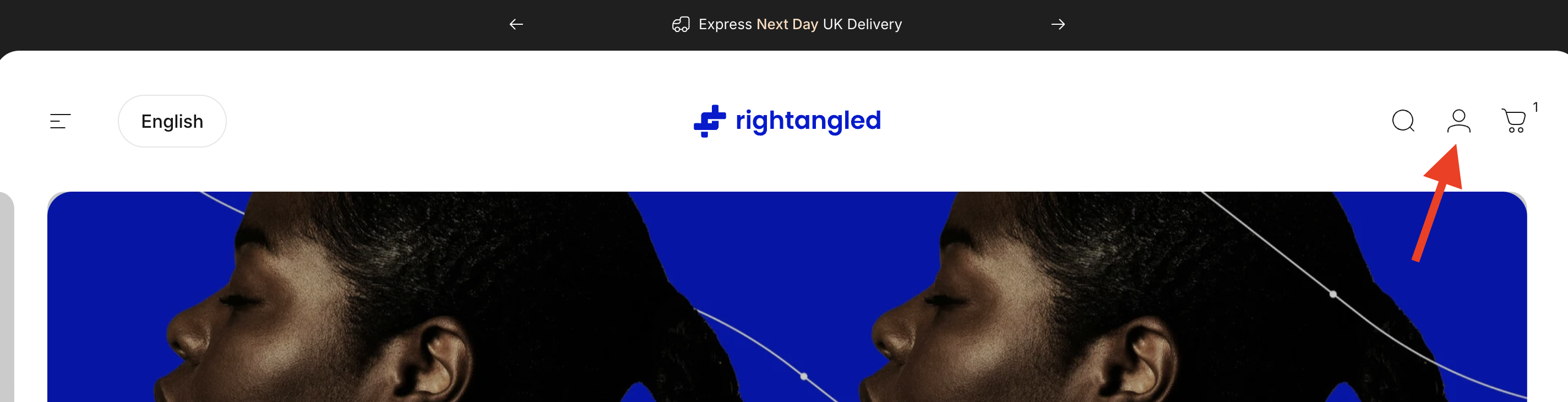
Step 1: Sign in to your account
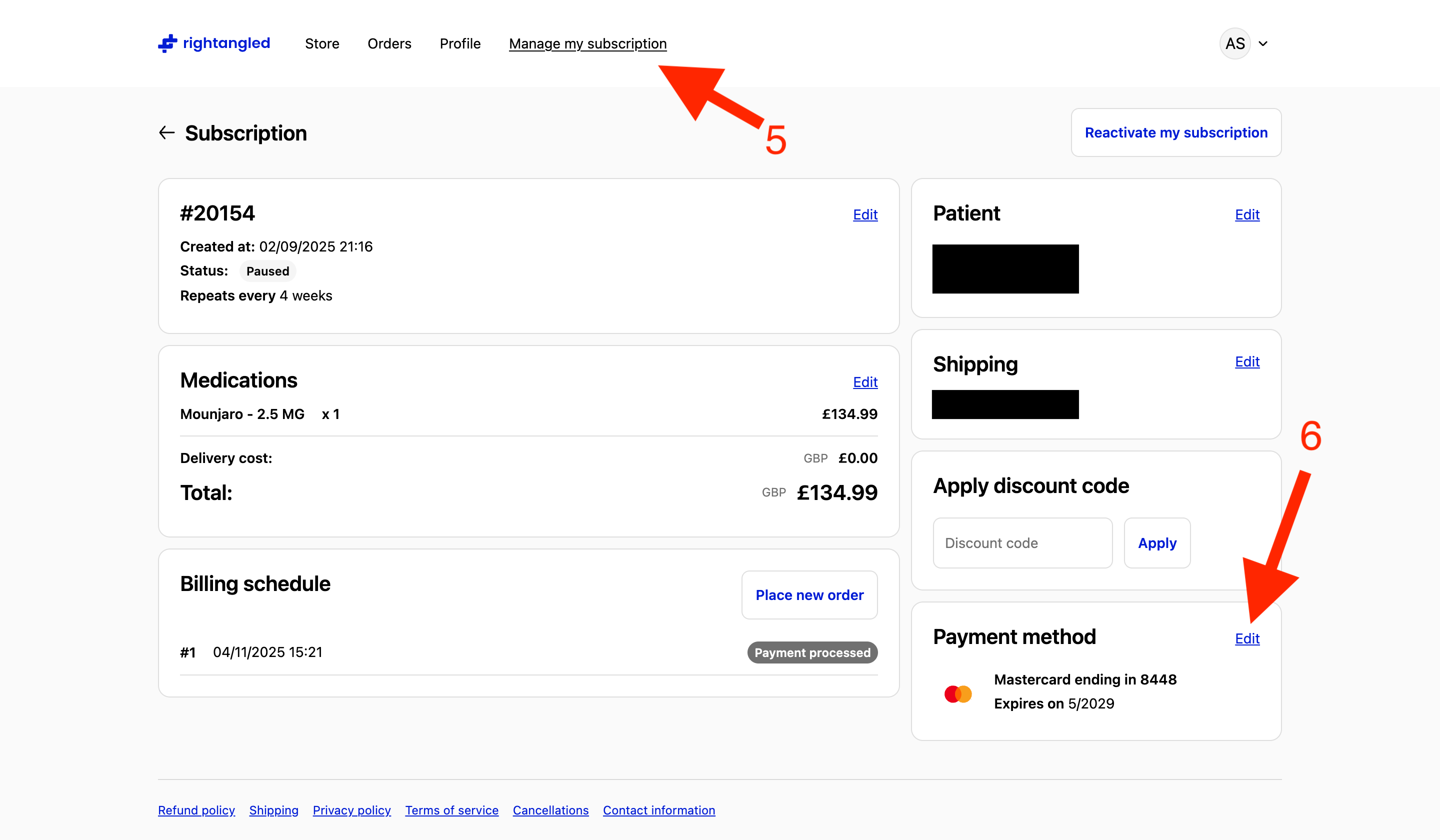
Log in to your Rightangled account and go to Manage my subscription.
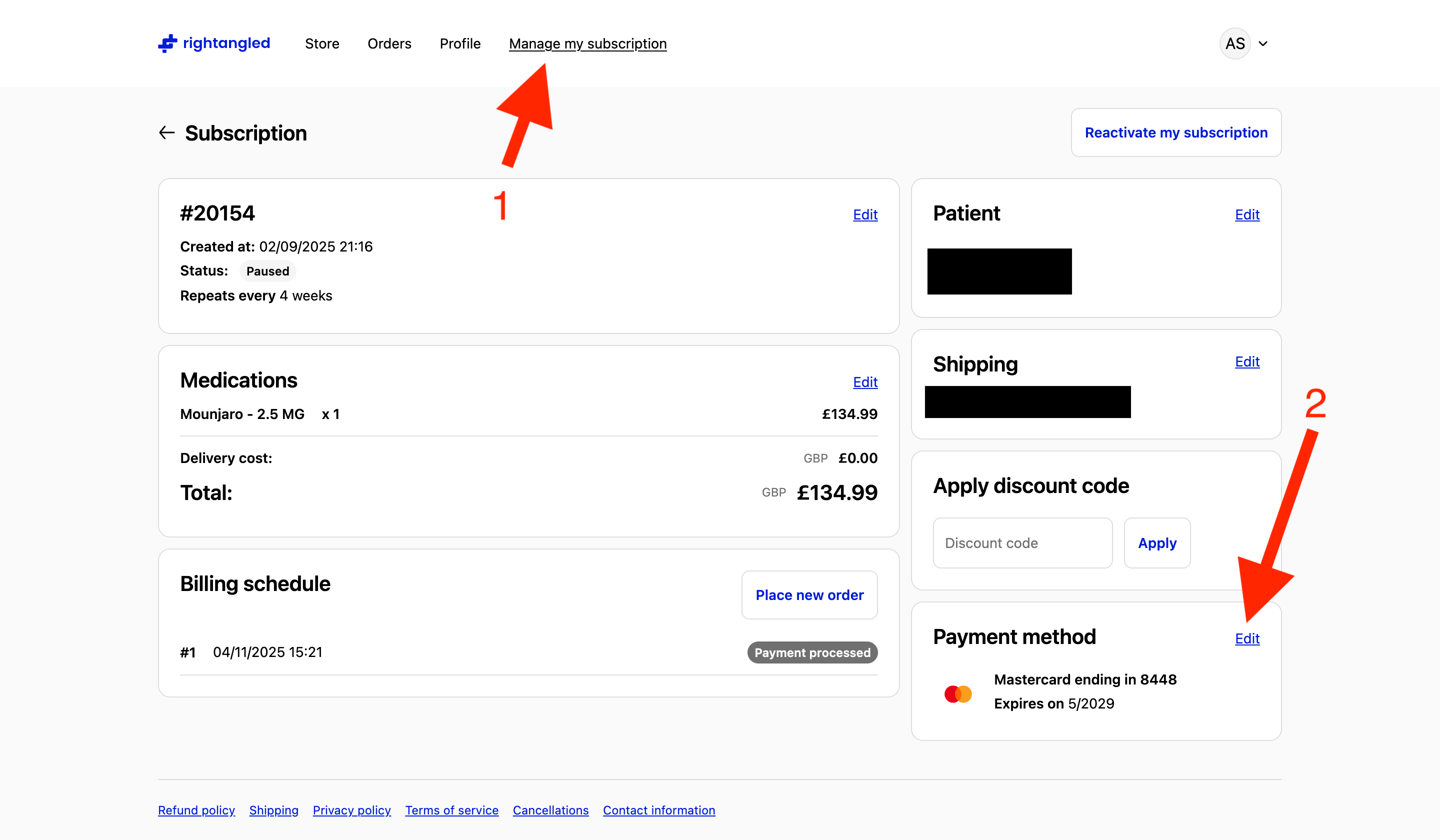
Step 2: Open your subscription
From the subscription page, find the Payment method section and click Edit.
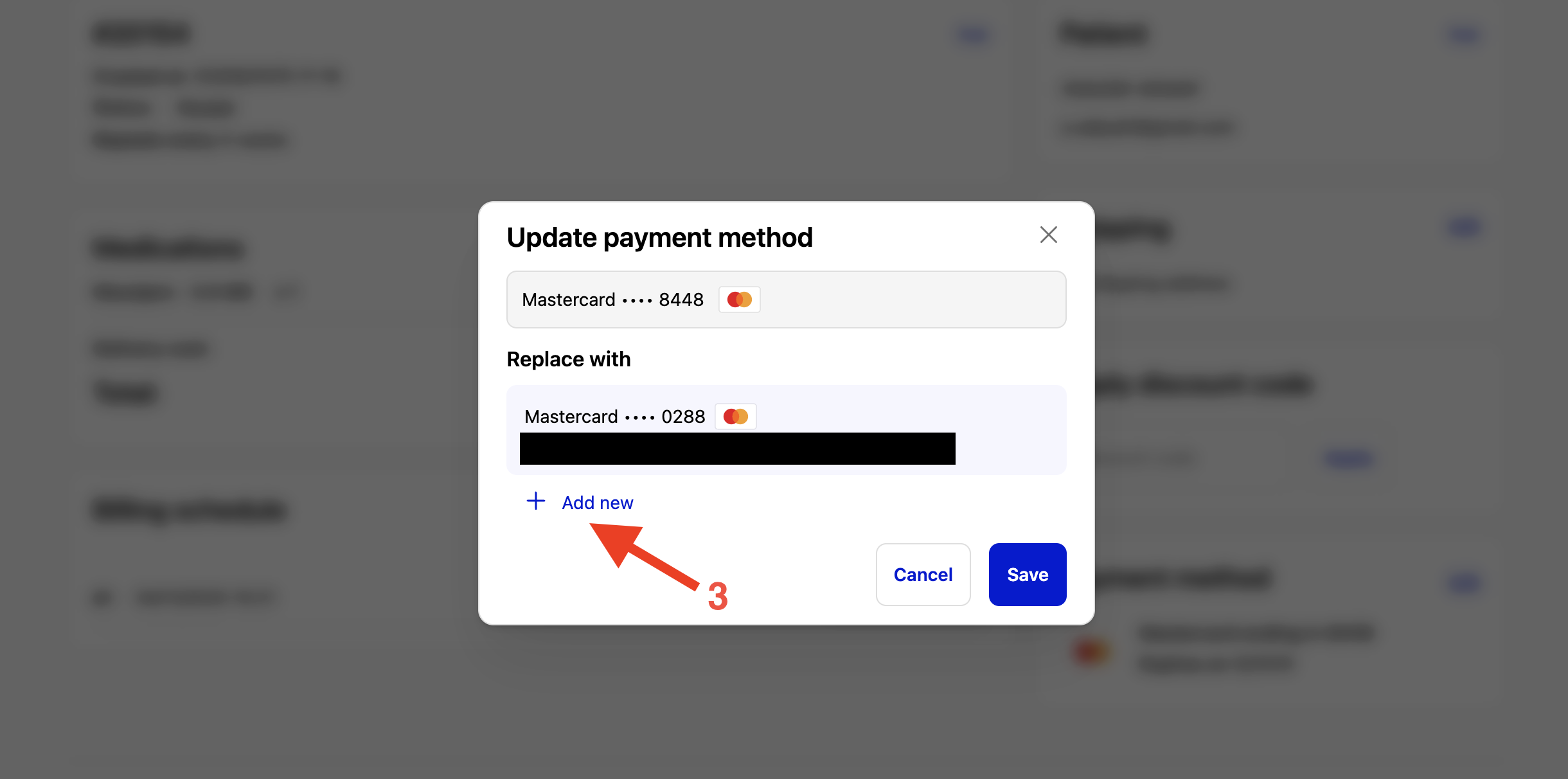
Step 3: Add a new card if needed
If the card you want to use is not already available, click Add new.
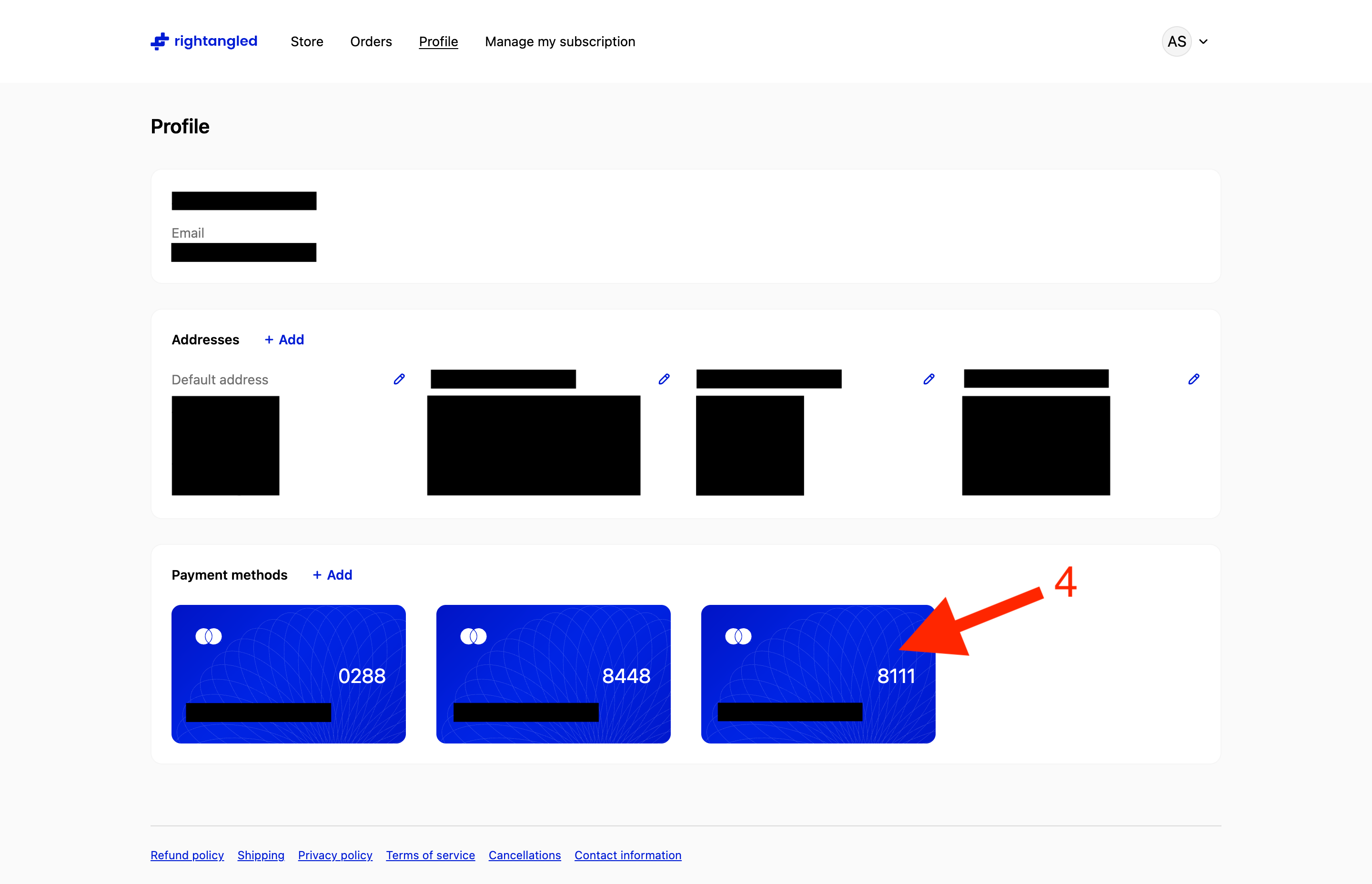
You may then be taken to your Profile page, where you can add and save a new payment method under Payment methods.
Step 4: Return to your subscription
Once your new card has been added, go back to Manage my subscription.
Step 5: Assign the new card to the subscription
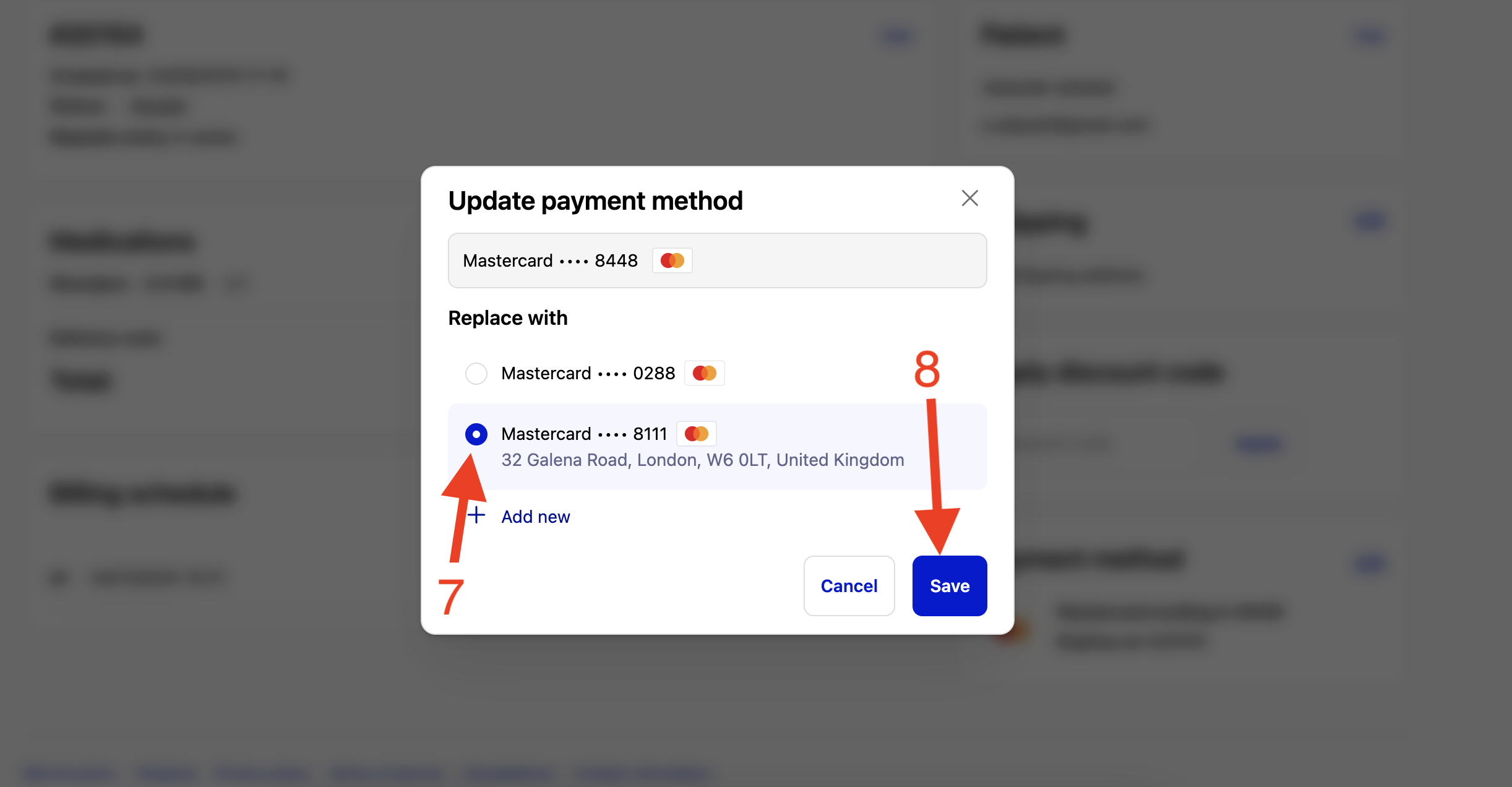
Click Edit next to Payment method again.
Select the new card you want to use for your subscription, then click Save.
Step 6: Reactivate your subscription if it is paused
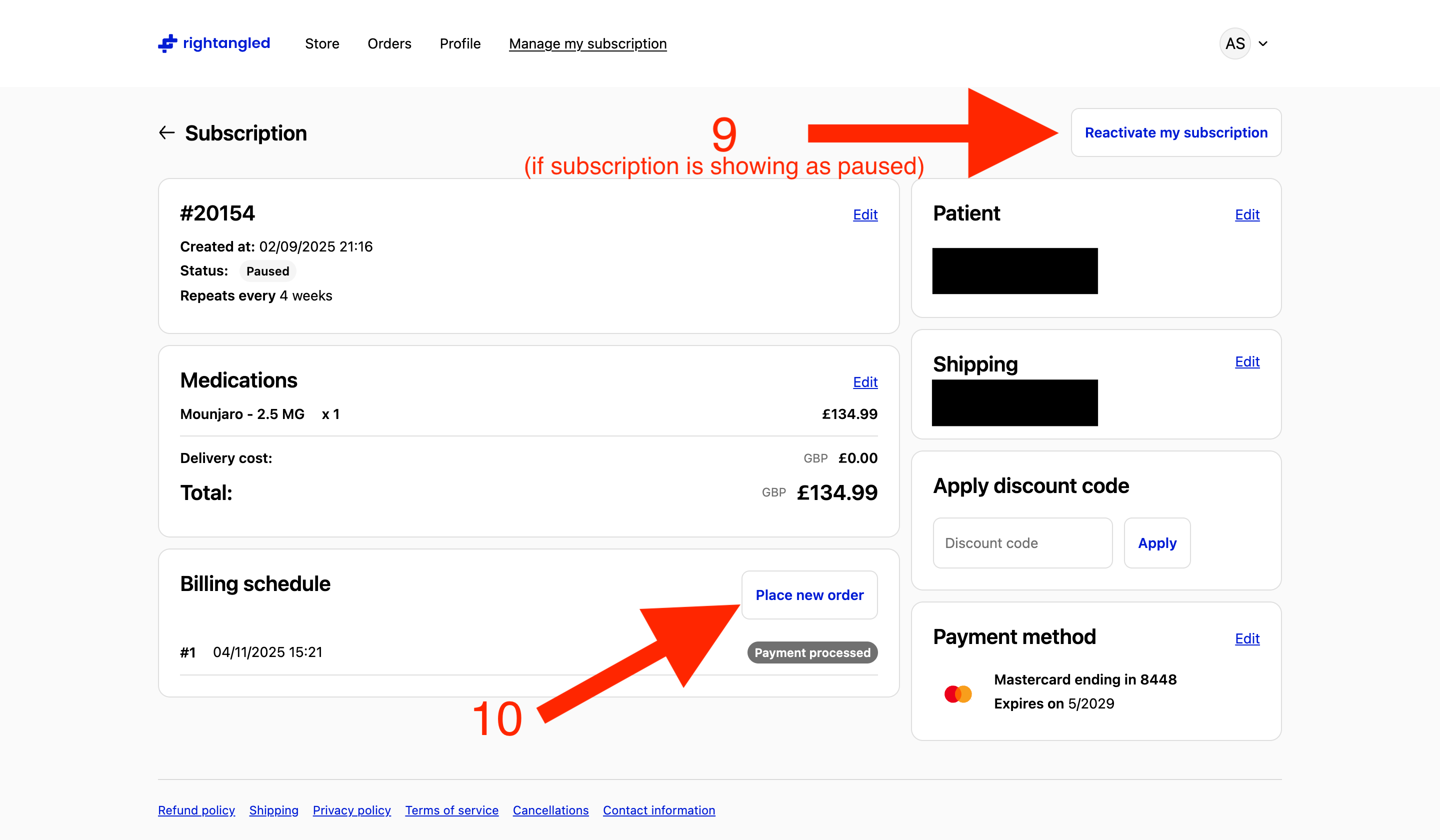
If your subscription shows as Paused, click Reactivate my subscription to resume future renewals.
Step 7: Place a new order now if needed
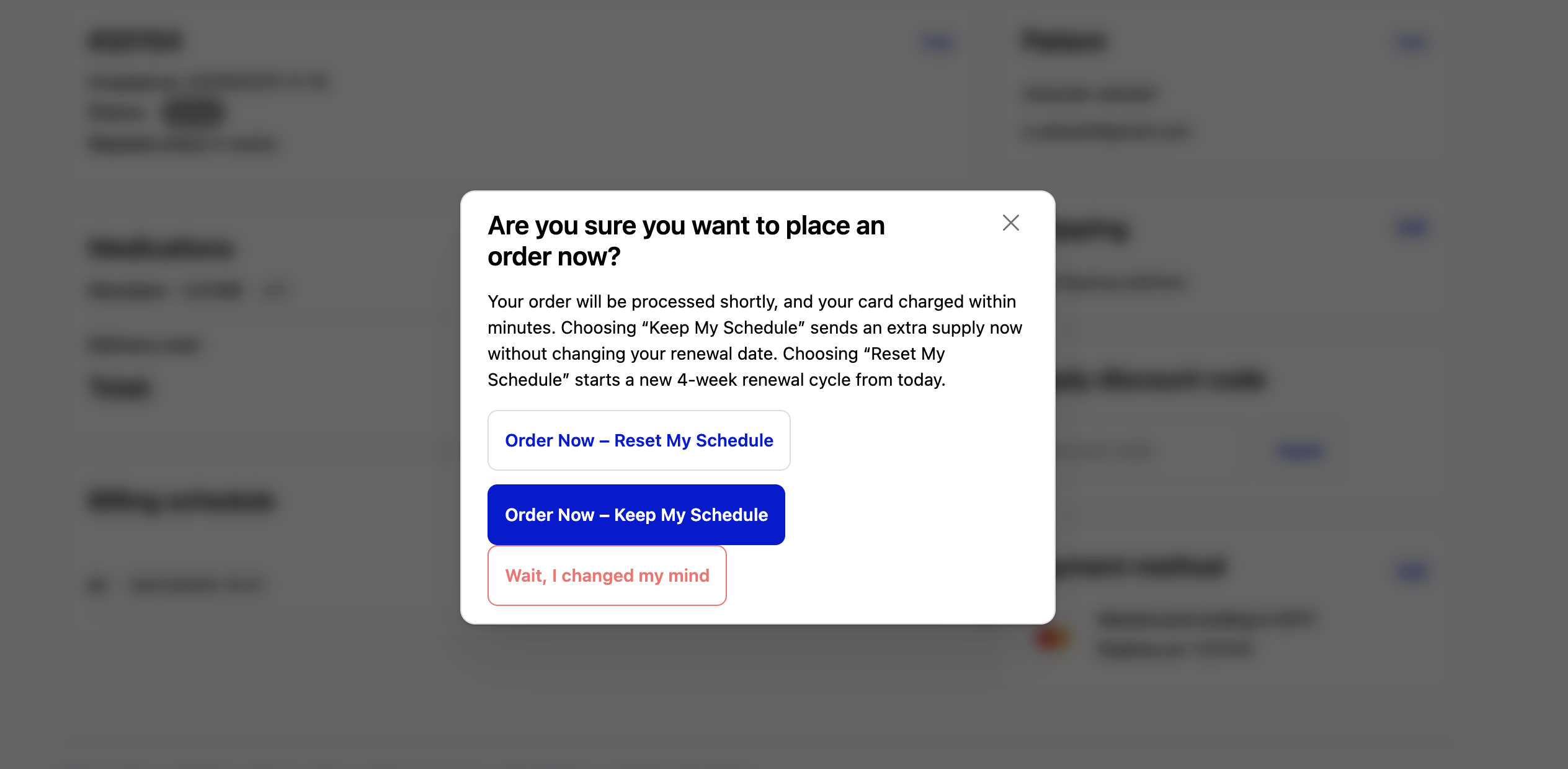
If you would like your next order to be processed immediately, click Place new order now.
You will then see two options:
- Order Now – Keep My Schedule
This places an order now without changing your existing renewal date. - Order Now – Reset My Schedule
This places an order now and starts a new 4-week renewal cycle from today.
Important notes
- Adding a card to your profile does not automatically update your subscription.
- You must go back into Manage my subscription and select the new card for the subscription.
- If your subscription has paused because of failed payments, it may also need to be reactivated.
- If you need your medication urgently, you may also need to click Place new order now after updating your payment method.
Need help?
If you have updated your card but are still having trouble, please contact our support team at info@rightangled.com and we will be happy to help.
Thanks for your feedback!